Category: Workstation Management

  • Hide the TimeMachine SMB to avoid more permissions issues

    Pointing out a key element in the SMB code posted before.

    [smb-name-for-timemachine]
      ...
      valid users = timemachinename00, timemachinename01
      ...

    For the valid users, be sure to:

    1. Create SMB users for each separate system.
    2. Don’t include wider SMB users. If you accidentally click into that share in Finder on OSX, you’ll end up messing up the permissions for any other SMB you have loaded.
    3. If you change users or shares you’ll probably have to delete the old timemachine file and start again. You might be able to fix permissions but probably not worth going down that path.

    So far the setup is working (along with so many other services from the same N150 powered Ubuntu) really well and well worth the 2-3 hours of setup and refining times.

    Updated and Retried with Ubuntu 25.04 and MacOS Tahoe 26.0.1: 11/19/25
  • MacOS and “unreleased” disk space weirdness

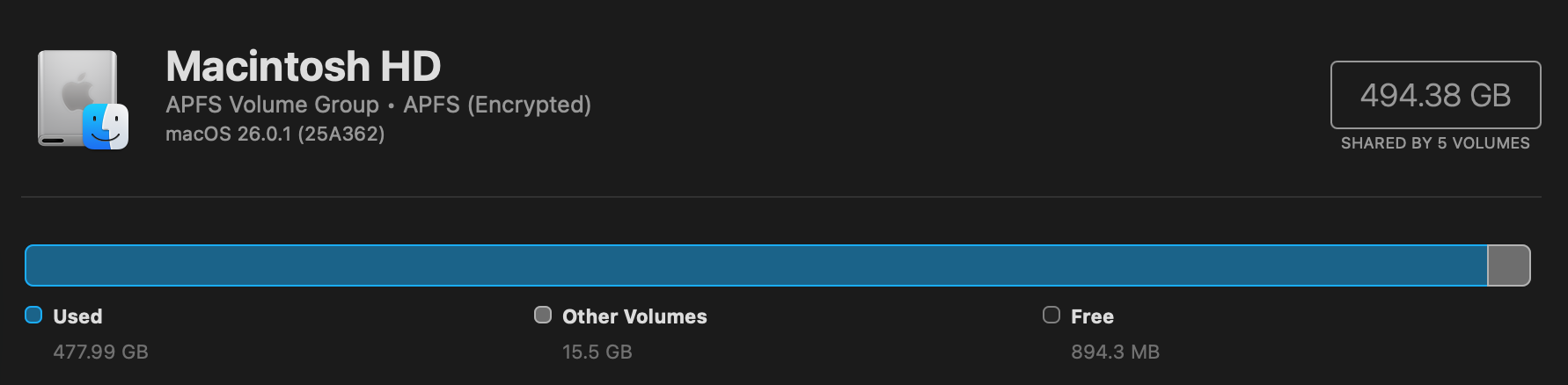
    MacOS and “unreleased” disk space weirdness

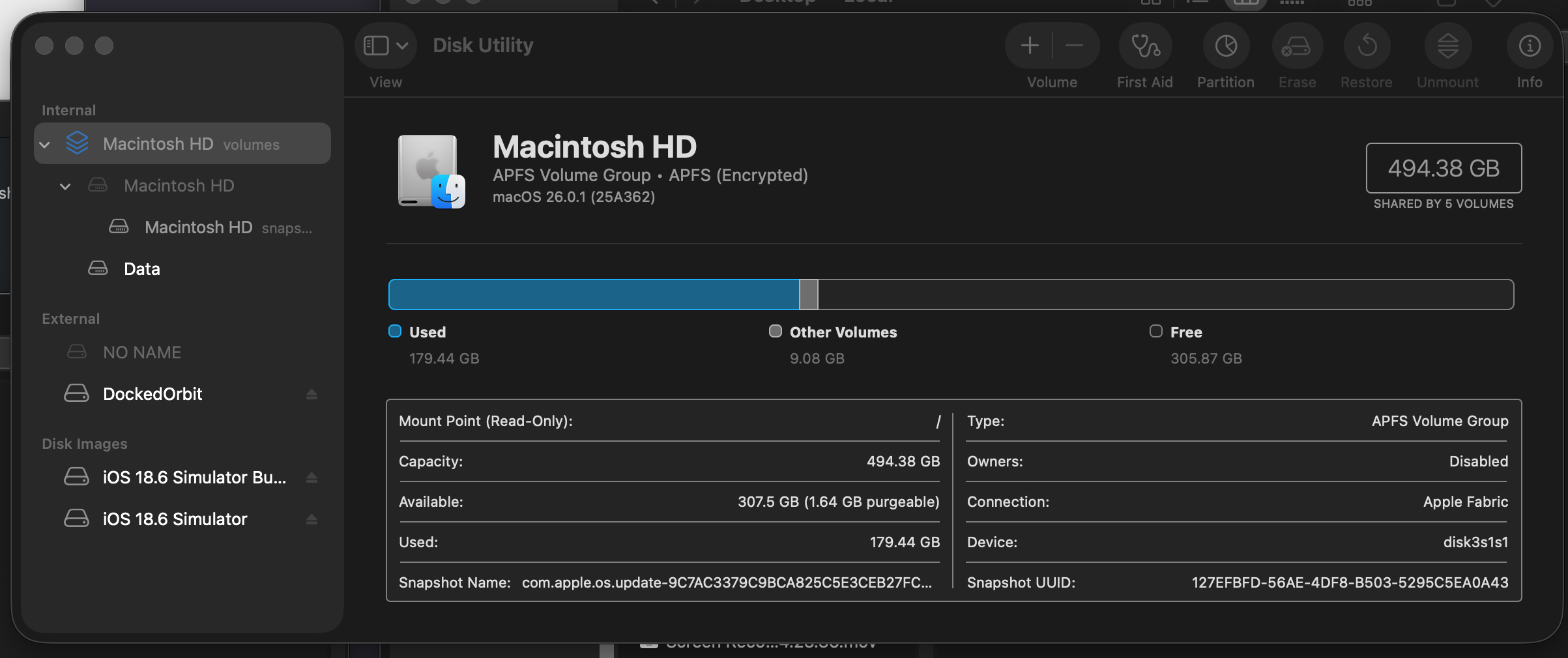
    Mac Studio with 512 GB of space and yet somehow almost 300 GB was unaccounted for? Often I leave the system running (it sips power at idle and is mostly solar powered) and mostly don’t install apps just run various terminal and text apps, nothing terribly heavy. Well, maybe local AI plays a part? Also apparently Time Machine can sometimes unnecessarily lock up space. There are a few variables to pin down here. Time Machine, Xcode, half dozen Terminal windows, Affinity? There are few different processes that could be causing a disk leak? (As opposed to a memory leak.)

    Anyway, needs some testing but for now if you have a MacOS drive that has a huge disparity in free space, even using a breakdown app like Disk Inventory X, restart or shutdown and startup. It will take a moment after restarting for the drive to clear out but that should do the trick.

    Updated and Retried on MacOS 26.0.1 11/12/25

  • Moving MacOS local iOS backups for maximizing space

    Ditching all cloud services is not easy considering just how convenient so many of them are and how much space some of these services can take. Backing up a phone and tablet, particularly and iPhone and iPad Pro can take as multiple terabytes and often Mac’s have smaller primary storage. (I wonder why Apple…) Fortunately with a USB-C drive and a symlink, you can get basically unlimited storage for backing up devices.

    (Obviously update the paths for your set up as needed.)

    ln -s "/Volumes/DockedOrbit/PhoneandPadBackups/Backup" ~/Library/Application\ Support/MobileSync

    Updated and Retried on MacOS 26.0.1 11/05/25