Category: Server Management

  • Moving MacOS local iOS backups for maximizing space

    Ditching all cloud services is not easy considering just how convenient so many of them are and how much space some of these services can take. Backing up a phone and tablet, particularly and iPhone and iPad Pro can take as multiple terabytes and often Mac’s have smaller primary storage. (I wonder why Apple…) Fortunately with a USB-C drive and a symlink, you can get basically unlimited storage for backing up devices.

    (Obviously update the paths for your set up as needed.)

    ln -s "/Volumes/DockedOrbit/PhoneandPadBackups/Backup" ~/Library/Application\ Support/MobileSync

    Updated and Retried on MacOS 26.0.1 11/05/25

  • Jellyfin Docker Compose is Brilliant

    After the little snafu of DuckDuckGo’s Assist box showing non-official directions, I tried the Docker Compose install and, with just a little set up.

    My docker-compose.yml here. Most of the changes are commenting out the user, running it as root, and hiding the environment configuration for now.

    Also note using the Plex media folder for everything, which is not the best idea. Here permissions wasn’t an issue, running as root, but probably should move things around and have this properly organized. For now though, everything gets dumped in there.

    So far, using Jellyfin as a music streamer with a specific client, Finamp, works great.

    services:
      jellyfin:
        image: jellyfin/jellyfin
        container_name: jellyfin
        # user: plex:plex
        ports:
          - 8096:8096/tcp
          - 7359:7359/udp
        volumes:
          - ./config:/config
          - ./cache:/cache
          - type: bind
            source: /var/lib/plexmediaserver/Library/audio/
            target: /media
          # Optional - extra fonts to be used during transcoding with subtitle burn-in
        restart: 'unless-stopped'
        # Optional - alternative address used for autodiscovery
        # environment:
          # - JELLYFIN_PublishedServerUrl=http://example.com
        # Optional - may be necessary for docker healthcheck to pass if running in host network mode
        extra_hosts:
          - 'host.docker.internal:host-gateway'

    Updated and Retried on 25.04 11/04/25

  • Search Assist Boxes don’t pull from official docs?

    Search Assist Boxes don’t pull from official docs?

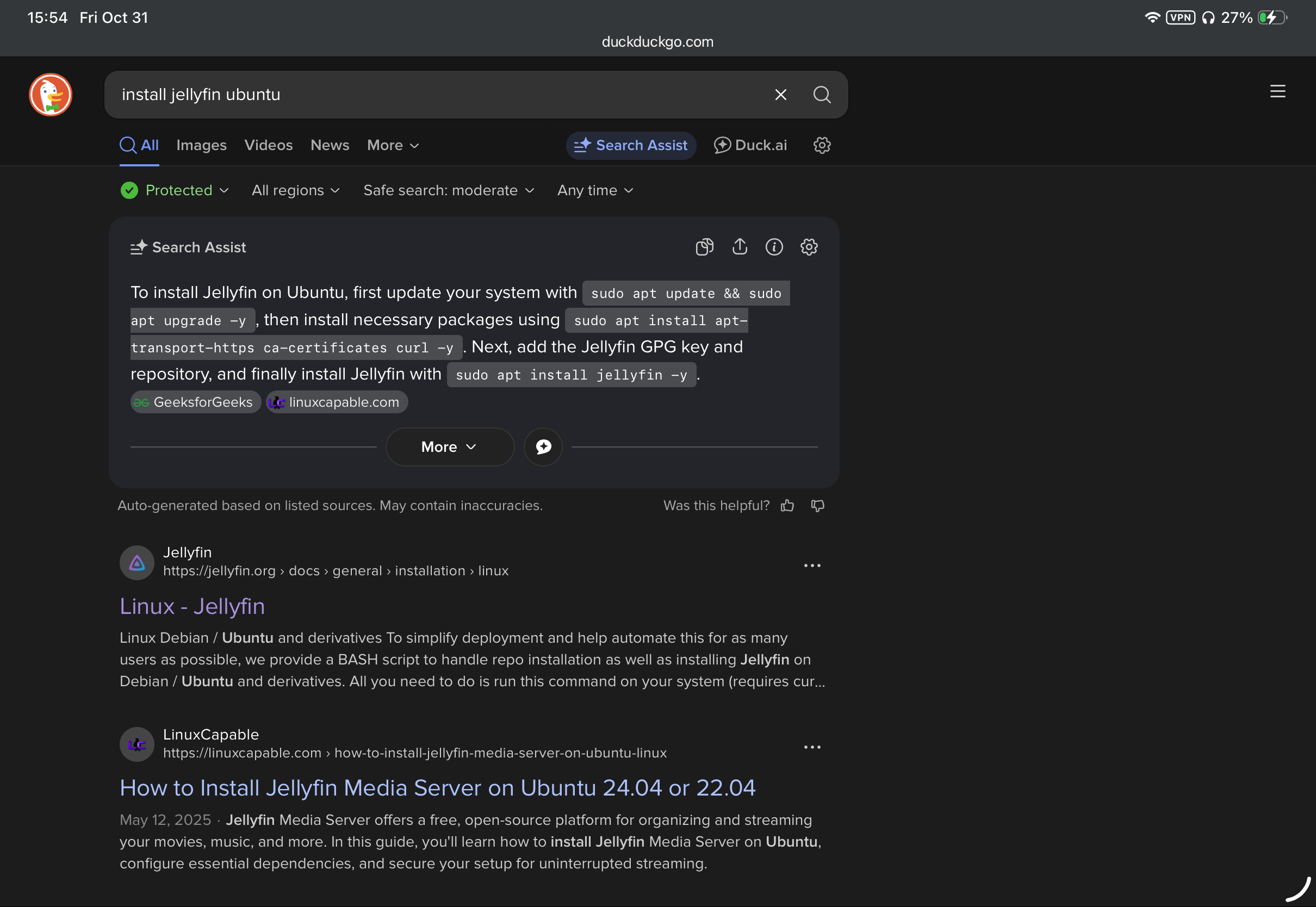
    Going to install Jellyfin and for, whatever reason, the main suggestion isn’t the official instructions. Why exactly?

  • Ubuntu 25.10 Remote Desktop Auto-Setup

    Warning: Potentially Insecure Scripts Below

    Following up on a previous post trying to get the x11-less Ubuntu 25.10 set up with GUI management it looks like it’s possible to get Remote Desktop working. (Spice, unfortunately, has not been updated much in a long time and the install command seems to not work.)

    This doesn’t work fully yet, still running into keychain issues, but it’s close. On Reddit, user LarkinZero has a script that resets the password on boot. (Below.) Now, this is a keychain change which doesn’t unlock on boot. Trying another script from jdonohoo on GitHub almost works but still getting an error, auto-login on or off.

    With both scripts there are potential security issues such as having a password in plaintext and auto keyring unlocking (besides it still not working fully.) Will keep following up on this.

    Now I will say, this does seem to unlock via just a couple CLI commands so this might be good enough. Will revisit soon.

    Warning: Unorganized below, currently reworking.

    Remote Credentials Update.

    Keyring unlock script.

    ```
    sudo apt-get install -y gnome-keyring libsecret-tools dbus-x11 vim
    ```
    
    1. Place your unlock script here:
    ```
    nano ~/.config/unlock-keyring.sh
    ```
    ```
    #!/bin/bash
    
    export DISPLAY=:0
    export XDG_RUNTIME_DIR=/run/user/$(id -u)
    
    password=$(<"$HOME/.keyring_pass")
    /usr/bin/gnome-keyring-daemon --unlock <<< "$password"
    ```
    
    ```
    chmod +x ~/.config/unlock-keyring.sh
    ```
    2. Create keyring password file
    ```
    vim ~/.keyring_pass
    ```
    ```
    chmod 600 ~/.keyring_pass
    ```
    
    3. Create the systemd unit:
    
    ```
    nano ~/.config/systemd/user/unlock-keyring.service
    ```
    
    ```
    [Unit]
    Description=Unlock GNOME Keyring
    After=graphical-session.target
    
    [Service]
    Type=oneshot
    ExecStart=%h/.config/unlock-keyring.sh
    RemainAfterExit=true
    Environment=DISPLAY=:0
    Environment=XDG_RUNTIME_DIR=/run/user/%U
    
    [Install]
    WantedBy=default.target
    ```
    
    4. Enable the service:
    ```
    systemctl --user daemon-reload
    systemctl --user enable unlock-keyring.service
    ```
    5. Ditch login keyring to make new one on next boot
    ```
    rm ~/.local/share/keyrings/login.keyring
    ```
    Set login passphrase to same as default / what you have in ~/.keyring_pass
    
    Optional test:
    
    ```
    systemctl --user start unlock-keyring.service
    ```

    Put in rc.local

    #!/bin/bash
    
    SCHEMA="org.gnome.RemoteDesktop.RdpCredentials"
    LABEL="GNOME Remote Desktop RDP credentials"
    USERNAME="abc"
    PASSWORD="123456"
    EXPECTED_VALUE="{'username': <'$USERNAME'>, 'password': <'$PASSWORD'>}"
    
    echo "Step 1: Clearing old credentials..."
    secret-tool clear xdg:schema "$SCHEMA"
    
    echo "Step 2: Storing new credentials..."
    echo -n "$EXPECTED_VALUE" | secret-tool store --label="$LABEL" xdg:schema "$SCHEMA"
    
    echo "Step 3: Verifying stored credentials..."
    RESULT=$(secret-tool lookup xdg:schema "$SCHEMA")
    
    if [ "$RESULT" == "$EXPECTED_VALUE" ]; then
        echo "Success: Stored credentials match the expected value."
        exit 0
    else
        echo "Error: Stored credentials do not match the expected value."
        exit 1
    fi

    Updated and Retried on 25.10 11/14/25
  • No x11 in Ubuntu 25.10 means no (easy) VNC

    No x11 in Ubuntu 25.10 means no (easy) VNC

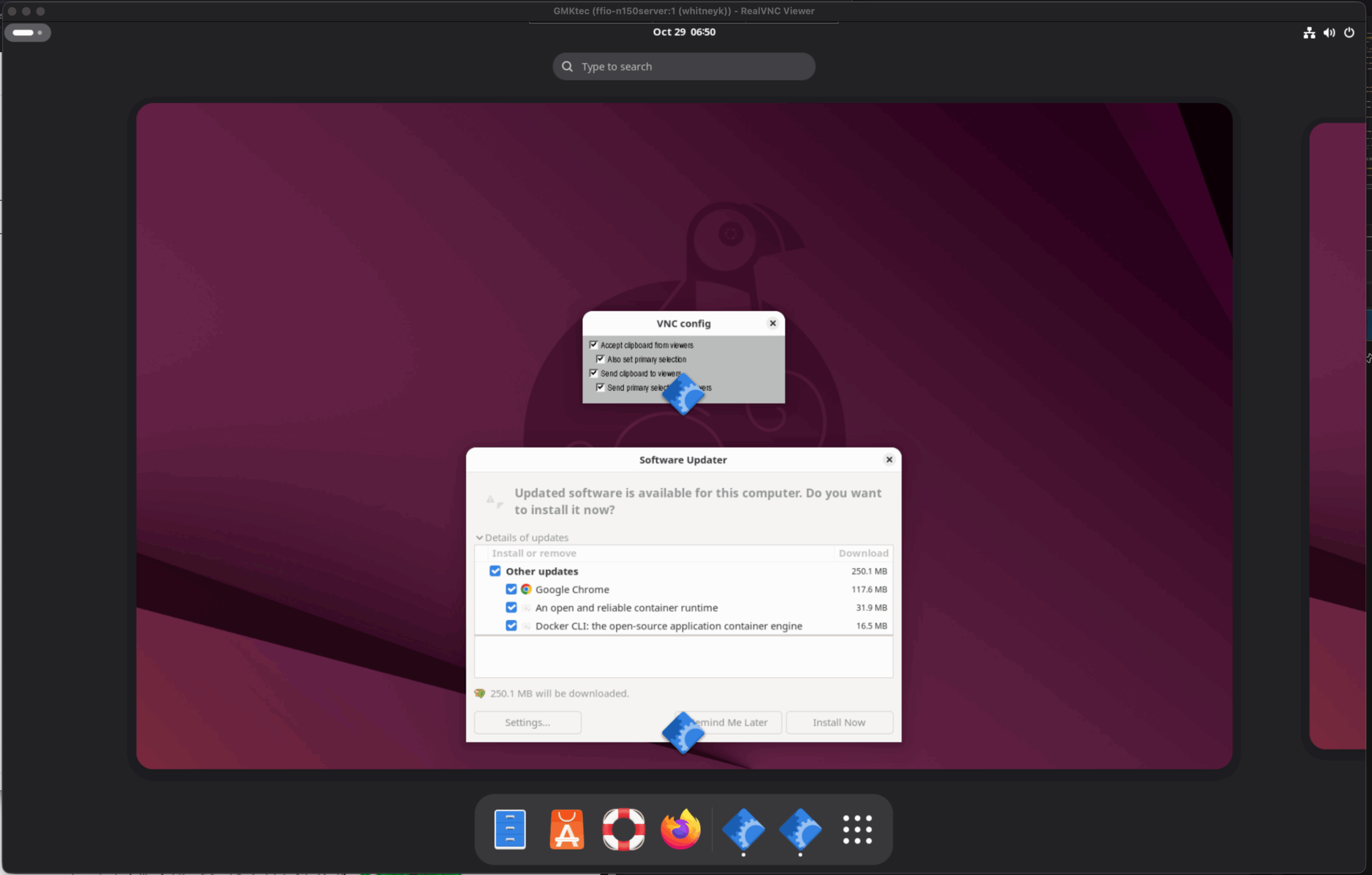
    While my 2-3 local Ubuntu servers are mostly managed via SSH CLI, it is helpful to have visual access particularly for programs that need mouse interaction. With Ubuntu 25.10, Canonical is moving away from x11 (for a variety of reasons.)

    Now Ubuntu can use the RDP (Remote Desktop Protocol) but the password rotates on reboot which, makes things difficult.

    Maybe Spice would work?

    (To be followed up on.)

    Updated and Retried on 25.10 10/29/25

  • Avoid MacOS Time Machine issues with Ubuntu SMB by Separating Users

    Avoid MacOS Time Machine issues with Ubuntu SMB by Separating Users

    Warning: Manage SMB users carefully.

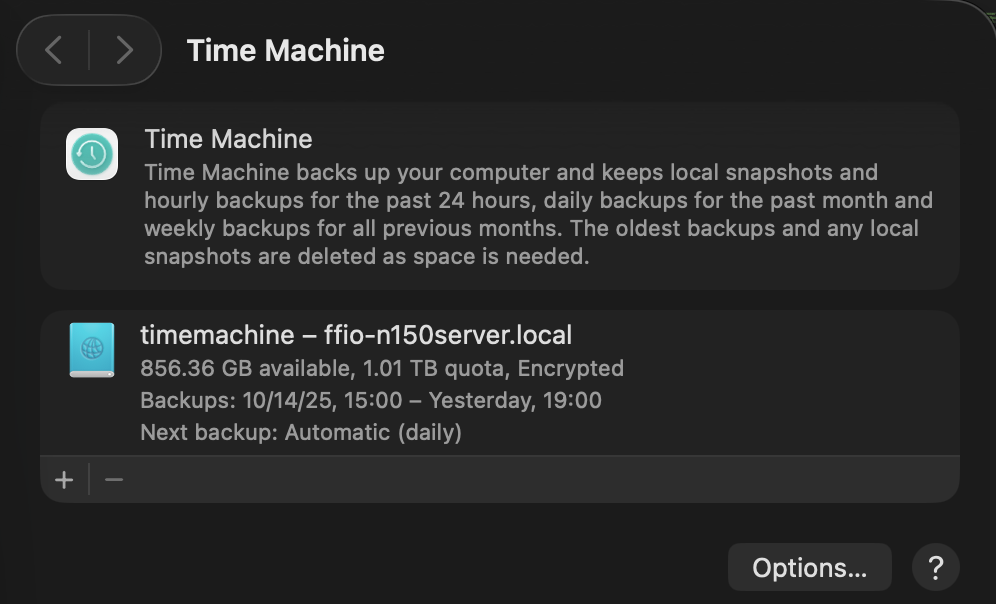
    Using Time Machine along with SMB shares seems to cause an issue when the backup runs the other SMB shares stop working. What is likely happening is MacOS is locking the files as it starts the backup to avoid read write problems.

    Separating the users, as in having one SMB user for files sharing and a second for Time Machine seems to solve the issues.

    Fortunately, setting up an SMB share for Time Machine is pretty straightforward and developer Marinus Klasen has a great guide. I’ve simplified what is needed an added it below at the bottom. General steps.

    1. First, create the users and set up the disks on Ubuntu. Add 2 SMB users (guide on that below.)
    2. Update the Ubuntu’s SMB settings.
    3. Set up Time Machine on MacOS before connecting to SMB shares. The share you’re looking to use should show in the list.
    4. Connect to your other SMB shares and go!

    There’s a great quick guide on ask Ubuntu about adding a CLI only SMB user on Ask Ubuntu.

    ## For TimeMachine Config ##
    # Fruit global config
      fruit:aapl = yes
      fruit:nfs_aces = no
      fruit:copyfile = no
      fruit:model = MacSamba
    
    [timemachine]
       # Load in modules (order is critical!)
       vfs objects = catia fruit streams_xattr
       fruit:time machine = yes
       fruit:time machine max size = 1.5T
       comment = Time Machine Backup
       path = /TimeMachine (CHANGE THIS)
       available = yes
       valid users = timemachine (Maybe don't permit other SMB users.)
       browseable = yes
       guest ok = no
       writable = yes

    Ask Ubuntu

    Updated and Retried with Ubuntu 25.04 and MacOS Tahoe 26.0.1: 11/19/25