Category: Server Management

  • Separate Docker Compose containers as an alternative to TrueNAS

    TrueNAS has running been excellently on a random collection of HDDs, 9th Gen Intel, and older NVidia GPU parts but it can be a lot to manage. Enabling and discovering apps on TrueNAS is easy but, in my experience, fully configuring the apps can be more difficult than than editing Docker Compose files. So when it came time to replace as many cloud services as possible with 1 N150 Mini PC, I decided to use Docker Compose instead of TrueNAS or another more managed solution. Currently the system is running:

    1. Samba file sharing, general file management.
    2. Anytype noting Server.
    3. LEMP Server.
    4. Kimai Time Tracking.
    5. NextCloud Contacts and Calendar Server.
    6. Plex Video Server.
    7. JellyFin Music Server.

    Everything works a treat. Need to implement backups to TrueNAS (which it excels at) but otherwise I find it much easier to manage and add services with single docker-compose.yml files rather than going through a UI. The real test is when I start to try out Kubernetes.

    Updated and Retried on Ubuntu 25.04 12/01/25

  • Ubuntu 25.10 Remote Desktop with Fixed Password and Full Screen Window (VNC alternative)

    Stop: This doesn’t work. Unfortunately on further testing, the keyring doesn’t unlock without interacting via monitor/keyboard.


    This feels unnecessarily difficult. While ideally you interact most servers via CLI the reality is there will be some visual interaction needed for some systms and currently Ubuntu 25.10 does not seem to have easy headless management with x11 gone. Sure you might be able to rip out the keyring but that doesn’t feel good. Annoying. Will keep testing and following up.


    Starting from a reinstall of Ubuntu 25.10 on the N100 Mini PC, more on this interesting little PC later, the script that resets the password works a treat though I don’t have it running automatically.

    There are 2 options in 25.10 Remote Desktop and Remote Login. Now it seems like Remote Login should be what we need, it’s password does not change, but as of this post that login is not working for me whether I have it enabled with Remote Desktop or not. Will dig into that and see if there’s a bug report already.

    Remote Desktop Password Reset Script

    Again credit to LarkinZero for the password updating script. For now, running this on connect. This system will be mobile so having a secure password is a good idea. Just running this via SSH works well.

    #!/bin/bash
    
    SCHEMA="org.gnome.RemoteDesktop.RdpCredentials"
    LABEL="GNOME Remote Desktop RDP credentials"
    USERNAME="abc"
    PASSWORD="123456"
    EXPECTED_VALUE="{'username': <'$USERNAME'>, 'password': <'$PASSWORD'>}"
    
    echo "Step 1: Clearing old credentials..."
    secret-tool clear xdg:schema "$SCHEMA"
    
    echo "Step 2: Storing new credentials..."
    echo -n "$EXPECTED_VALUE" | secret-tool store --label="$LABEL" xdg:schema "$SCHEMA"
    
    echo "Step 3: Verifying stored credentials..."
    RESULT=$(secret-tool lookup xdg:schema "$SCHEMA")
    
    if [ "$RESULT" == "$EXPECTED_VALUE" ]; then
        echo "Success: Stored credentials match the expected value."
        exit 0
    else
        echo "Error: Stored credentials do not match the expected value."
        exit 1
    fi

    Full Screen

    At first, I over-complicated this thinking there needed to be virtual monitor or a dummy plug but really, one setting.

    gsettings set org.gnome.desktop.remote-desktop.rdp screen-share-mode extend

    Not sure why that’s not set out-of-the-box. Without that setting, the RDP connects, is blank, and disconnects. With that setting, all works as expected.

    Updated and Retried on 25.10 11/21/25
  • Hide the TimeMachine SMB to avoid more permissions issues

    Pointing out a key element in the SMB code posted before.

    [smb-name-for-timemachine]
      ...
      valid users = timemachinename00, timemachinename01
      ...

    For the valid users, be sure to:

    1. Create SMB users for each separate system.
    2. Don’t include wider SMB users. If you accidentally click into that share in Finder on OSX, you’ll end up messing up the permissions for any other SMB you have loaded.
    3. If you change users or shares you’ll probably have to delete the old timemachine file and start again. You might be able to fix permissions but probably not worth going down that path.

    So far the setup is working (along with so many other services from the same N150 powered Ubuntu) really well and well worth the 2-3 hours of setup and refining times.

    Updated and Retried with Ubuntu 25.04 and MacOS Tahoe 26.0.1: 11/19/25

  • RPi 4, Lineage OS, and Victron Connect for Remote Control

    RPi 4, Lineage OS, and Victron Connect for Remote Control

    Recently had a problem with a Victron Controller and voltage spikes and it would have been really helpful to either alter the voltage settings or just disable the charge controller remotely for a temporary fix. Now, Home Assistant works as a monitor perfectly but, so far as I know, you can’t alter values via HA. (Will look into that more.)

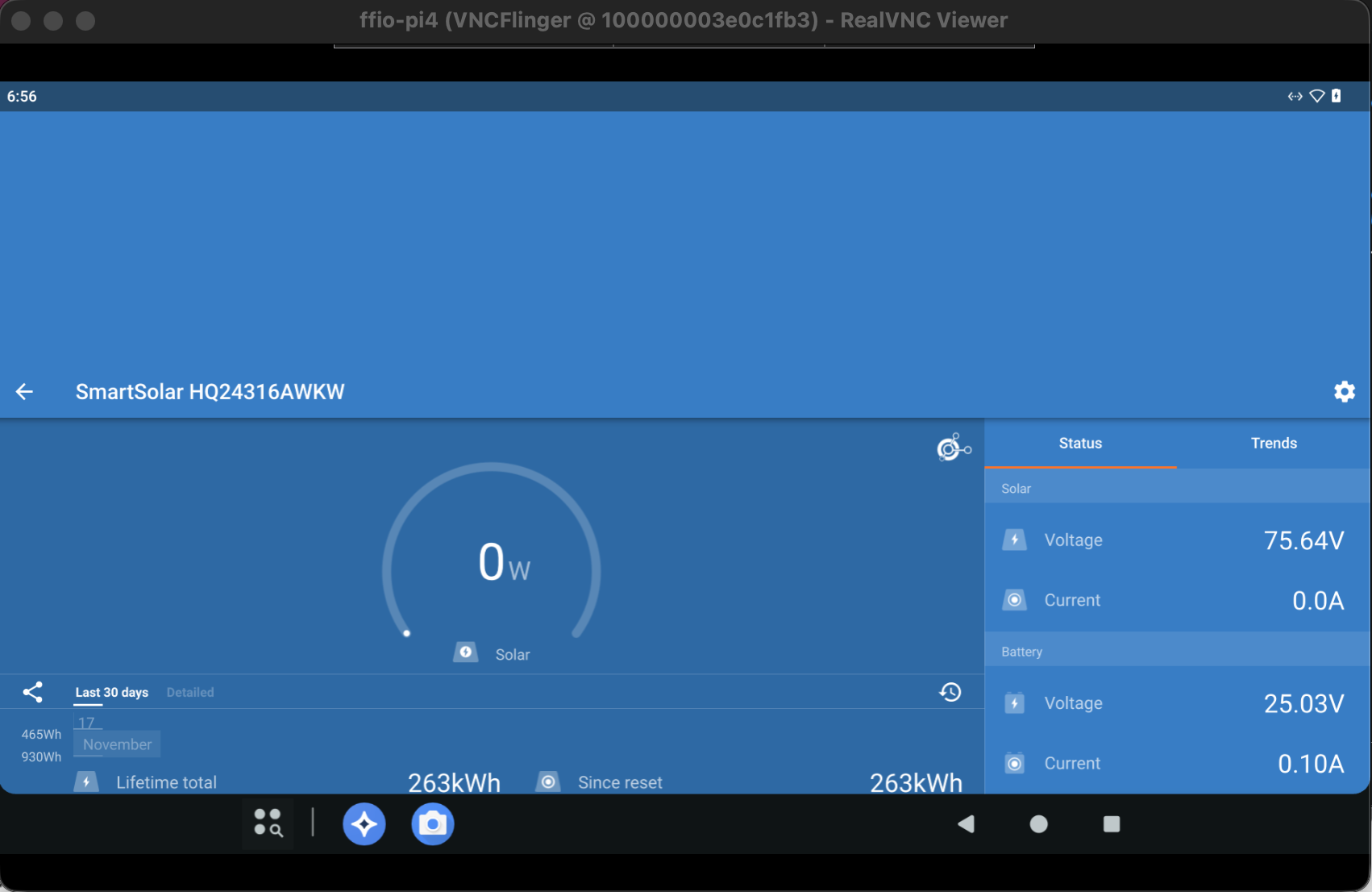
    Turns out Lineage OS, via KonstaKangs excellent page, works a treat. You do need GApps to install repos like Litime’s battery monitoring, but the Victron Connect APK is available from their site.

    The setup isn’t perfect. The VNC connection is a little temperamental, the Victron App doesn’t display right, so on. But Bluetooth works and connects for all apps.

    Definitely will refine and revisit but great to have the backup connection to controllers and batteries.

    Updated and Retried on LineageOS 23 11/18/25

  • MemTest PSA, Run MemTest before NAS OS Setup

    Pretty much the title. TrueNAS installed, ran, and mostly worked on RAM that threw so many errors in MemTest I’m surprised the system posted at all. TrueNAS, being ZFS based, uses RAM heavily for caching, reading, and writing so data was getting corrupted in weird ways with confusing errors. What made it hard to pin down was that the system ran, created pools, and overall worked unexpectedly well where another OS probably would have failing during install; in a way, the simplicity of TrueNAS hid hardware instability. The errors only showed up when starting to work with data.

    Even if you experience issues with a long running, otherwise issue free system, memtest as a first troubleshooting step. RAM can go bad over time (though that happens less often.)

    Updated 2025/11/11

  • Nevermind, Immich on a shared N150, 70k files in 1 week

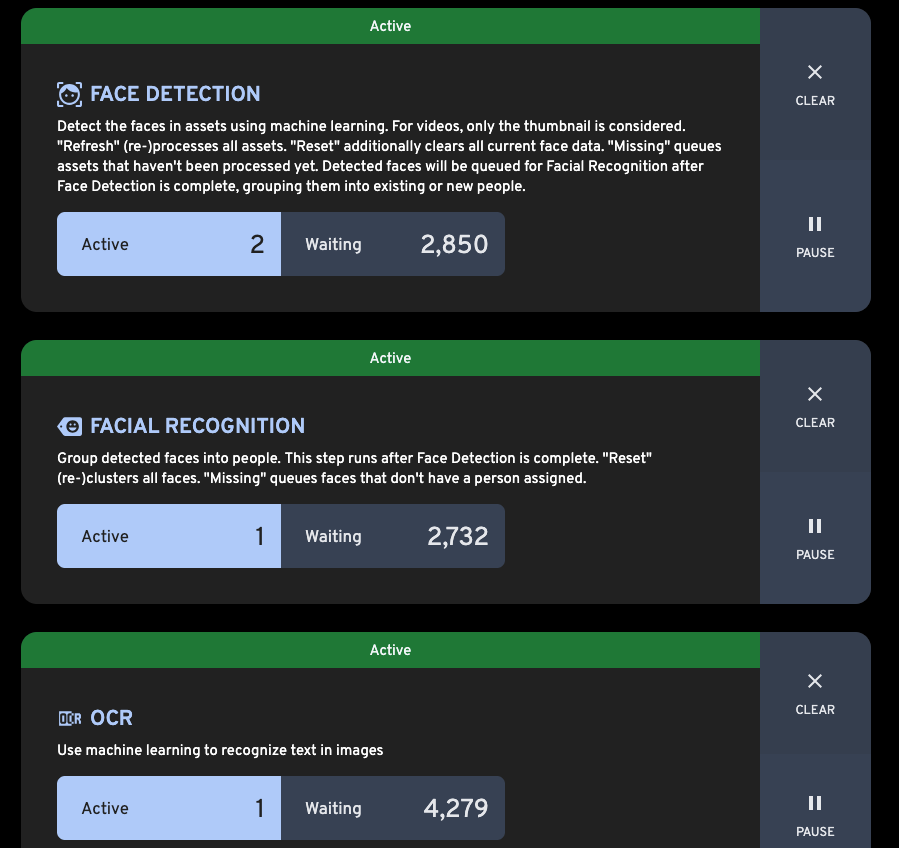
    With 70k+ photos and movies coming into immich; getting all new thumbnails, and organization I thought it would be months before the limited Intel N150 would finish processing but it may just be weeks. In fact, the library was usable almost overnight. Around 20k iCloud files came in about 2-3 hours. It seems like the RAW photos and video are taking the most time, as would be expected.

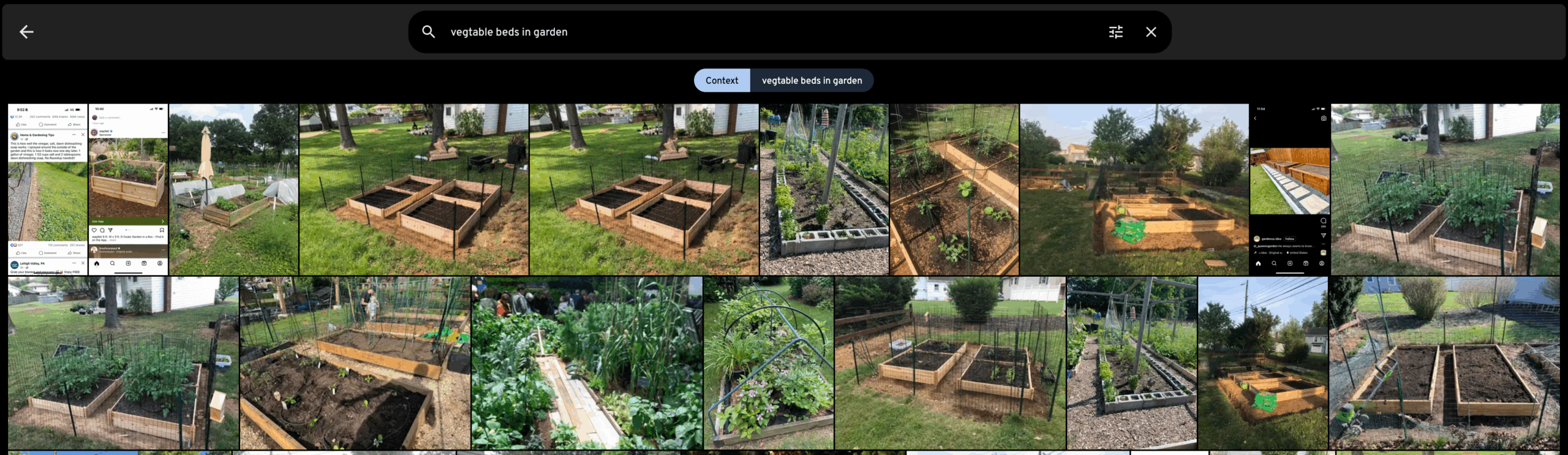
    What is more, the search already is producing great results.

    Need to revisit all the numbers but so far, impressive speed, and UX is great. Not doing everything standard though. We have iCloudPD pulling in images rather than using the phone backup but will go into more detail later.

    Updated and Retried on iOS and Ubuntu 25.04 powered by an N150 and 16 GB RAM 2025/11/10